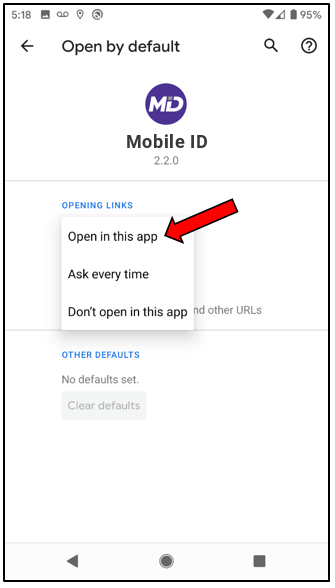
Android Screenshots
Android 9: Opening SMS OTP Link in Mobile ID App
If you have an Android device and get the message “This site can’t be reached” when you tap on the link that is texted to you during enrollment, please follow the steps below!
Note: These instructions are for Android 9. Other versions of Android may have settings in a slightly different location.
Step 1: Open Android Settings
Select Apps & Notifications.
Image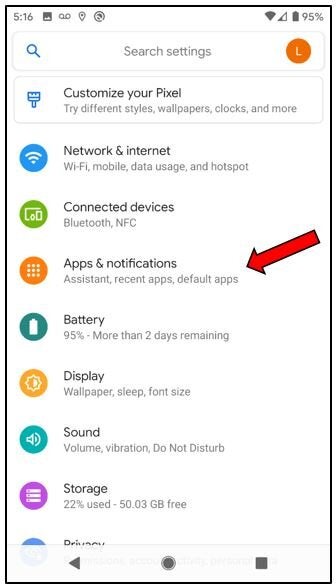
Scroll down and tap Advanced to expand it.
Image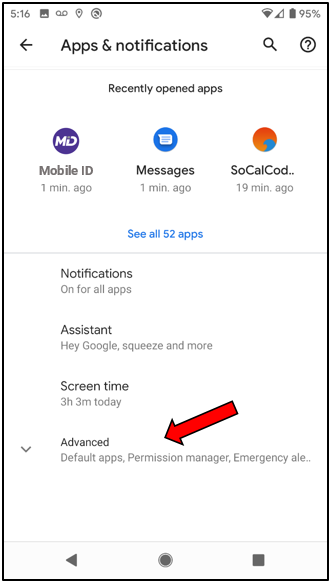
Scroll down and select Default apps.
Image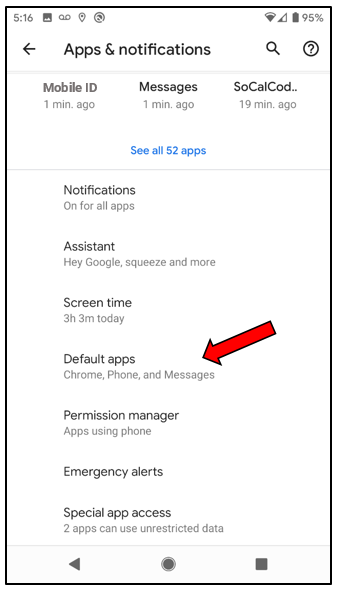
Open the section called Opening links.
Image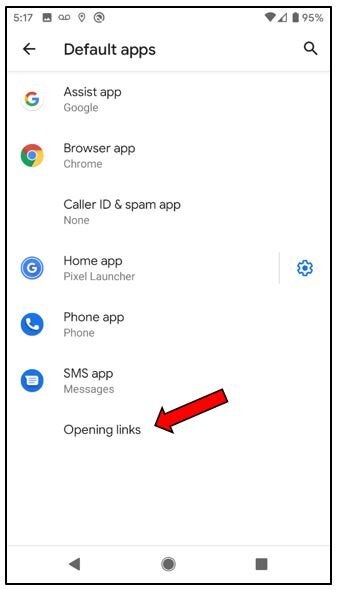
Look for your default browser. This is most likely Chrome.
Image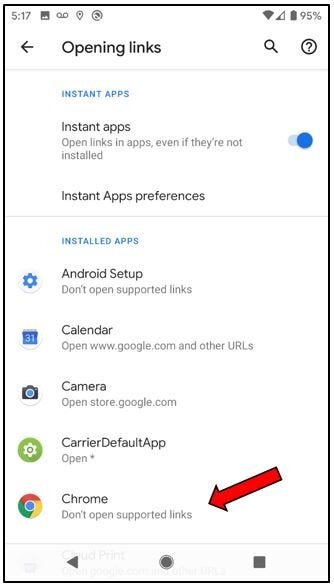
Step 2: Change Chrome Settings
Tap on Chrome and then tap Clear defaults.
Image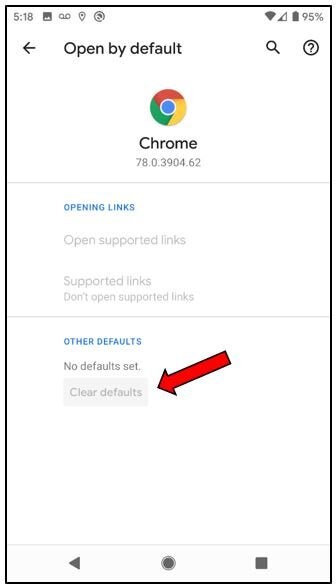
Go back to Opening links.
Image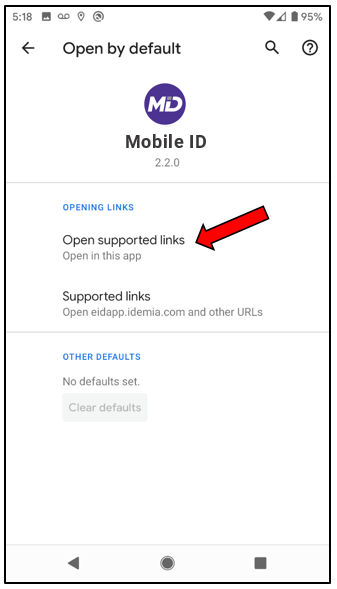
Step 3: Set Mobile ID as Your Default App for Mobile ID Links
In the Opening links screen, select your Mobile ID app.
Image